What can an MCP server fill in the NIS2 walkthrough, and what not?
In 19 of the 21 items an assistant fills in something through the MCP server: fields, lists, ratings, agreements, sign-ins, backups and the text of the policies. It writes only into items that are open or on the waiting list. Finishing, deciding, deleting suppliers, assets or trainings, and everything at 7.3 stay in the app.



Which items does the assistant fill in?
All but two. In 12.3 there is nothing to fill in: you read the item and finish it yourself. At 7.3 it fills in nothing, because a management review recorded there puts the item before management.
In the other 19 items it answers questions, fills lists, rates risks and writes policy drafts. The sections below show what exactly, item by item.
It has no tool for these steps: finishing an item, putting it on the waiting list, recording that the company decided not to do it, inviting someone. Only an assistant that can send a file itself, such as Claude Code, uploads a file as evidence.
Which rules hold for every item?
An assistant writes only into items that are open or on the waiting list. If it works on an item on the waiting list, it picks it up again, as the app does.
An item that is finished, decided against or signed is changed by a person in the app. If a signed item rests on a list, the server refuses any change to that list and names the items affected.
The server refuses an empty answer, so that no assistant erases what someone wrote. A field it leaves out stays as it is. It never deletes a supplier, an asset or a training.
If a person holds the Reviewer or Legal reviewer access role, their assistant only reads. Everyone else fills in items in the categories assigned to them, an admin in all of them.
Which questions and lists does it answer?
Fields are the single questions of an item. In 12.2 an assistant answers the account reference and the date of registration, in 3.3 whether you can sign in to the portal and report.
In 3.1 it records who leads in an emergency, the emergency number, how you reach each other when email and the network are down, and whom the person leading calls next. Then there are 11.2 (tools for phone, video and chat), 6.3 (address for vulnerability reports) and 12.4 (attack detection system, last evidence sent to the BSI).
It fills lists in 1.1 and 8.2, who was trained when, and in 5.1, your suppliers. It adds rows and corrects existing ones.
For a supplier linked through its own account, it cannot change the statements the supplier made itself.
What does it fill in for assets and risks?
In 2.2 it ticks on four lists what your company has, adds entries of its own and records who provides what. Our article on building an asset inventory with AI shows how in detail.
In 2.1 it can adopt the risk assessment method the walkthrough proposes. In 2.3 it rates software, technology and suppliers: how often something could happen and how badly it would hit, with a short note if wanted.
The risk map only shows the result.
What does it record for contracts, sign-ins and backups?
In 5.2 it records for each supplier whether the contract settles security and whether it provides for incident notification. In 11.1 it records for each sign-in whether it takes a second factor, and which one.
In 4.4 it notes for each backup system how often it backs up and on which day a restore last worked. In 4.2 it marks which processes must keep running without IT, with a line on how.
Each row is saved as it sends it. That is why the server tells it to read what is there first.
How does it write policies and the crypto list?
Six items write a document: 3.1, 2.4, 9.1, 10.1, 6.3 and 4.2. An assistant picks which sections of the template apply to your company and writes what else holds there.
What is saved is a draft, which management approves at 7.3. No assistant rewrites a document management has already approved, because a changed text loses the approval. That happens in the app.
In 9.1 it takes over the proposed list of accepted methods and can adapt it. When it changes the list, it sends the whole list: a method it leaves out is no longer on it. So read the list in the app before you finish 9.1.
How the walkthrough does it
Four items show how far an assistant goes and where you take over.
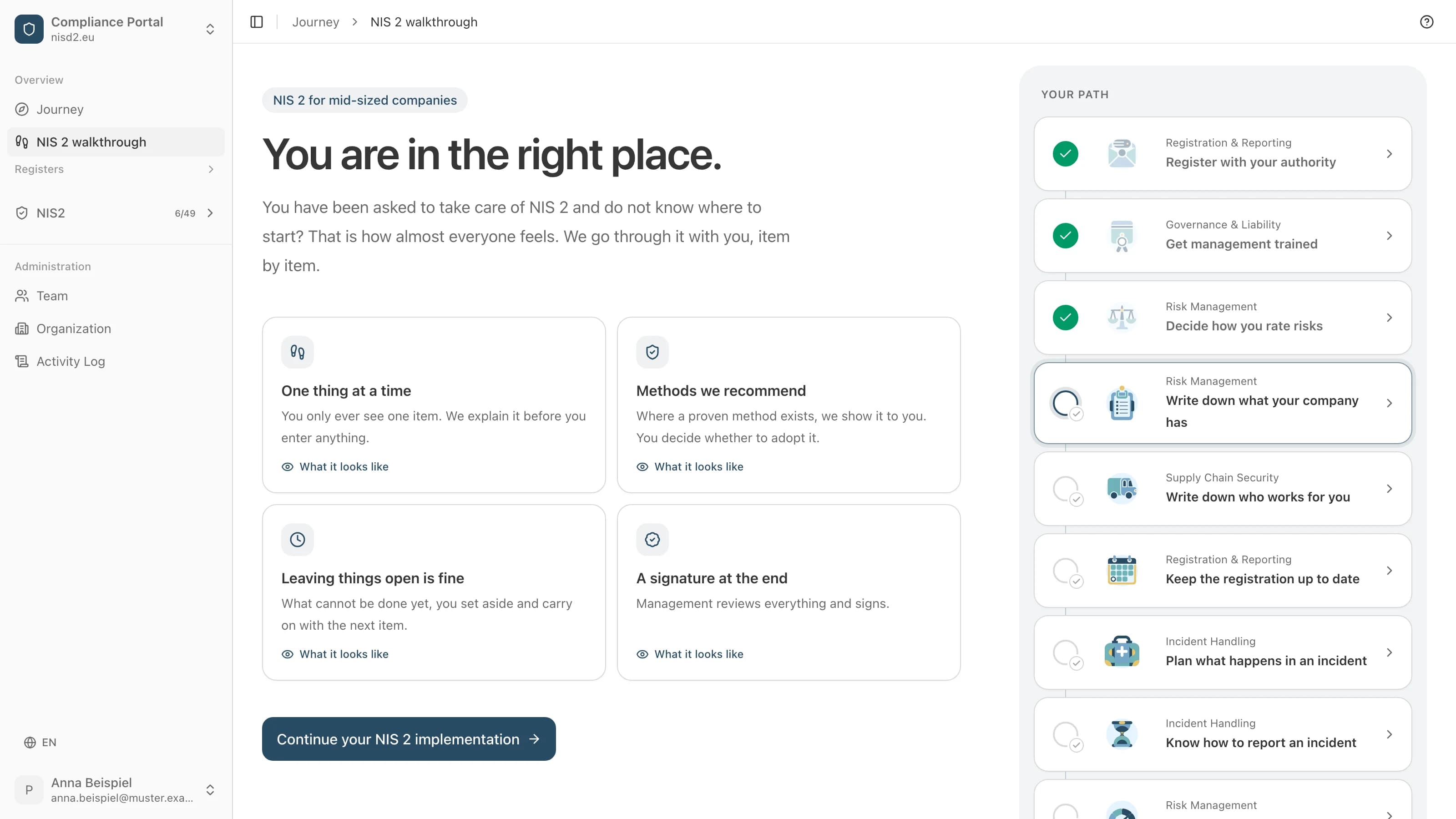
2.2 Write down what your company has: the assistant ticks entries on the four lists and describes each one. You read each list, remove in the app what is wrong, and finish.
5.2 Record what you have agreed with your suppliers: it records for each supplier what the contract settles. What follows from that, you decide.
4.4 Record your backups: it records how often backups run and when a restore last worked. A date nobody knows is better left empty until someone has tried a restore.
11.1 Record where a second factor protects: it records for each sign-in whether a second factor applies. A sign-in without one ends up on the list management sees at 7.3 before approving.
Common questions
Can the assistant finish an item once everything is filled in?
No, there is no tool for that. The server tells it what was saved and which fields are still empty, with the link to the item in the app. A person finishes it there.
What happens if I ask it to change a signed item?
The server refuses and tells the assistant that the change is made in the app, with the link to it. That way no assistant takes back a management signature.
Why does it not enter a management review at 7.3?
A review recorded there puts the item before management. That would finish it without the person working on it having decided so. That is why a person records the management review in the app.
Can it fill in items assigned to a colleague?
Only if you may work on that category yourself, because you are an admin or it is assigned to you. An assistant never has more rights than the person who connected it.
Read next
Sources
- open-isms, lib/mcp/walk.ts (FILLED_BY: who fills which kind of screen), github.com/NISD2/open-isms
- open-isms, lib/mcp/screens.ts (what each screen takes), github.com/NISD2/open-isms
- open-isms, lib/mcp/tools.ts (rules and refusals), github.com/NISD2/open-isms
- open-isms, lib/mcp/procedures.ts (which functions an assistant may call), github.com/NISD2/open-isms
- open-isms, content/docs/self-hosting/mcp.md, github.com/NISD2/open-isms
En la práctica
Dónde aparece esto en el recorrido guiado
El recorrido guiado lo convierte en pasos que usted rellena, con la ley explicada al lado de cada uno. Abra un paso para ver su pantalla, rellenada para una empresa ficticia.
El recorrido está en alemán y en inglés.

Risk Management
Write down what your company has
A list of the processes, software and devices you work with.

Supply Chain Security
Record what you have agreed with your suppliers
For each supplier: what does the contract say about security?

Business Continuity
Record your backups
How often you back up, and when a restore last worked.
Authentication & Communications
Record where a second factor protects
For each program on your list: password alone, or with a second factor.
Lo que cuesta el recorrido guiado
4800 € sin IVA al año, más IVA
30 días de devolución del dineroCon factura, a pagar en 30 días. Cancelación dentro de los primeros 30 días: factura anulada o devolución del dinero.
Implantación guiada de NIS 2, paso a paso
Un historial de cambios y aprobaciones para mostrar a su autoridad supervisora
Plazos y recordatorios para cada requisito
Cuestionario de seguridad para sus proveedores
Exportación a PDF o CSV en cualquier momento
¿Le han encargado NIS2?
Le guiamos paso a paso. Usted rellena, nosotros explicamos cada punto con palabras sencillas y, al final, firma la dirección.