How do I enable the MCP server and allow AI assistants?
An admin turns on "Allow AI assistants for this company" in Settings; you open Settings from the profile menu at the bottom left. After that, each person connects their own assistant to the NIS 2 walkthrough. Until then the switch is off, and when an admin turns it off again, every existing connection ends.




Where do I enable the MCP server?
The MCP server itself runs on every instance at /api/mcp. Enabling it means allowing it for your company.
Open the profile menu with your name at the bottom left and choose "Settings". At the top is the switch "Allow AI assistants for this company". It applies to the company that is open.
When it is on, everyone in that company may connect their own assistant, for example Claude Code, Claude or Copilot Studio. The assistant then reads the walkthrough and fills in what its items ask for.
It works as the person who connected it, with that person's rights: in their areas, or in all of them for an admin. The assistant of someone who only reviews the walkthrough can read it but fills in nothing.
Who may flip the switch?
Only an admin of the company. Everyone else sees the switch locked, with the line "Only admins can change settings." below it.
An assistant cannot flip it. The list of functions an assistant may call contains neither the switch nor creating a key.
If an assistant asks for access while the switch is off, the page for allowing it shows an admin the switch right there. Someone who is not an admin reads on that page that the admin has not allowed AI assistants, and can only decline.
Which accounts can connect an assistant after that?
Only someone who may open the NIS 2 walkthrough, because that is where the assistant works. On nisd2.eu that is an account whose order includes the walkthrough, on a self-hosted instance an account with an address in PLATFORM_ADMIN_EMAILS.
Anyone who may not open the walkthrough sees neither a key nor "Allow" in Settings or on the page for allowing an assistant, and gets the way to the walkthrough instead. An assistant that tries anyway is refused on every call.
What happens when an admin turns the switch off?
The app checks the switch when someone connects and again on every single call an assistant makes. So when an admin turns it off, every member's connections end, and the next call is refused.
Turning it on again later means each person connects their assistant again. What assistants have already entered stays in the walkthrough, with its mark.
How you disconnect single connections, and what else ends a connection, is in our article on revoking MCP access.
Why does the switch start off?
What an assistant reads goes to that assistant's vendor, under your company's agreement with them. Which vendor receives the data from your walkthrough is the company's decision. That is why an admin turns the switch on, and until then it stays off.
The switch covers every assistant; which one a person connects is their own choice. So decide beforehand which assistants your company allows, and list them as software in 2.2, as described below.
How the walkthrough does it
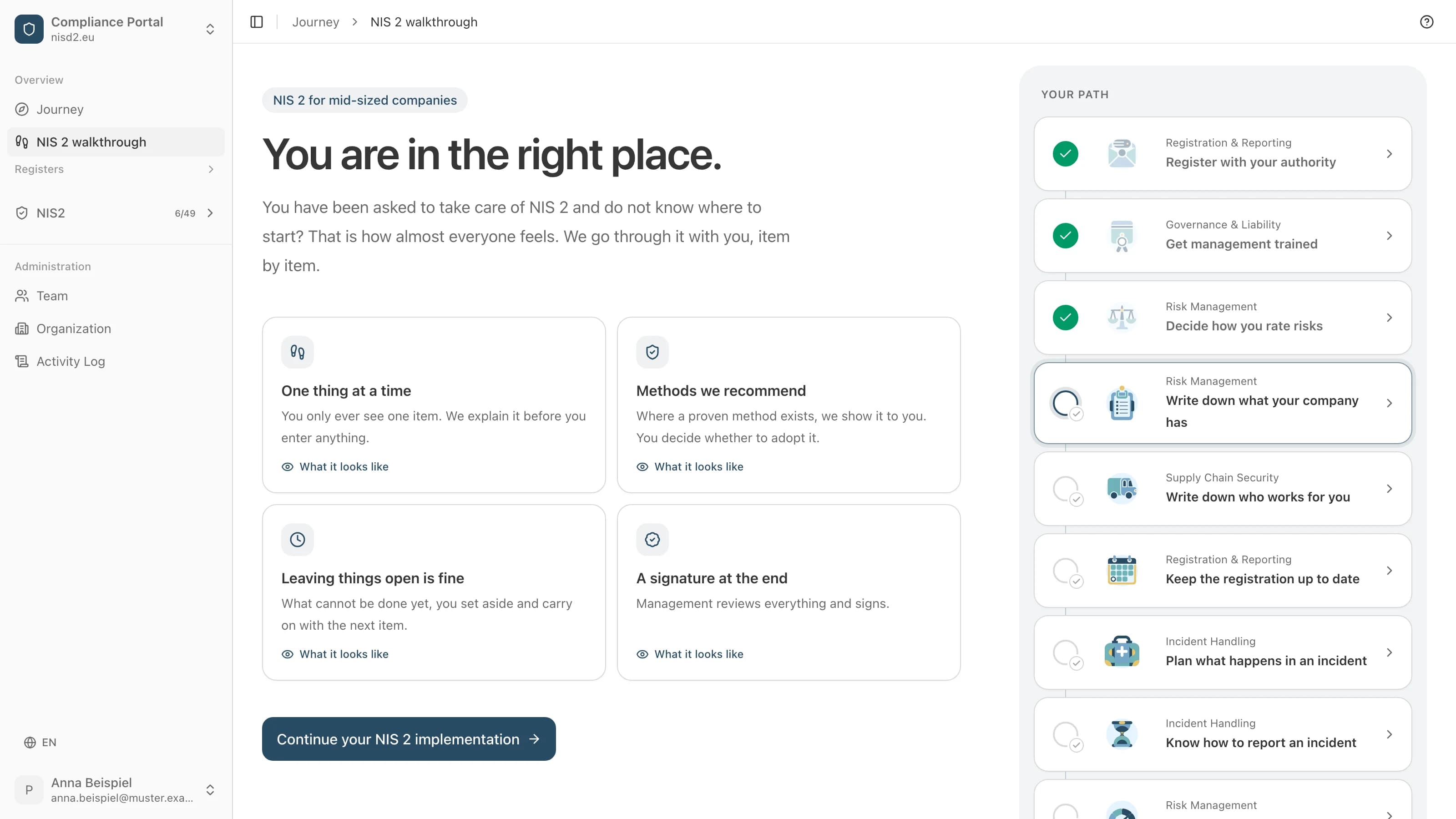
Once you allow assistants, the assistant itself belongs in your walkthrough.
2.2 "Write down what your company has": add the assistant on "Software everyone uses", and its vendor on "Which software exactly, and from whom?".
5.1 "Write down who works for you": a vendor you name in 2.2 is already on this list. Add what they do for you, for example that they process the walkthrough data the assistant reads.
Every screen an assistant wrote shows its name and the day, for example "Filled in by the assistant claude-code/2.1.287 on 16 October 2026". The person checks it before finishing the item.
Finishing, deciding and signing stay in the app, even with the switch on.
Common questions
Do I need to be an admin to use MCP?
Only to turn it on. After that, everyone who may open the walkthrough connects their own assistant. What it may do depends on their areas and their role.
Can I allow assistants for some people only?
No, the switch applies to the whole company. What an assistant may do depends on the person who connects it, though. Each person sees their own connections in Settings under "Connected" and disconnects them there.
Does anyone notice when an assistant is connected in their name?
Yes. When a key is created or an assistant allowed in the browser, the person gets an email. For a sign-in through the browser it names the assistant and the address it returns to. It also says what to do if it was not them: disconnect all assistants and change the password.
Is the switch on a self-hosted instance too?
Yes. Every instance has the same switch and the same address for assistants, /api/mcp, and there is nothing to set up for it. There, the accounts whose addresses are in PLATFORM_ADMIN_EMAILS can connect.
Is it recorded who enabled the MCP server?
Yes. Every flip of the switch is in the activity log, under the admin's name. When it is turned off, the entry notes that every connection was ended.
Read next
Sources
- open-isms, server/trpc/routers/assessment.ts (setAssistantsAllowed) and lib/mcp/allowed.ts, github.com/NISD2/open-isms
- open-isms, server/trpc/routers/user.ts and lib/mail/emails/assistant-connected.tsx (email on connecting), github.com/NISD2/open-isms
- open-isms, lib/mcp/procedures.ts (what an assistant may call), github.com/NISD2/open-isms
- open-isms, MCP server documentation, content/docs/self-hosting/mcp.md, github.com/NISD2/open-isms
In pratica
Dove compare nel percorso guidato
Il percorso guidato ne fa dei passi da compilare, con la legge spiegata accanto a ciascuno. Apri un passo per vedere la sua schermata, compilata per un'azienda di fantasia.
Il percorso è in tedesco e in inglese.

Risk Management
Write down what your company has
A list of the processes, software and devices you work with.

Supply Chain Security
Write down who works for you
A list of your suppliers and service providers.
Quanto costa il percorso guidato
4800 € netti all'anno, più IVA
Rimborso entro 30 giorniCon fattura, da pagare entro 30 giorni. Annullamento entro i primi 30 giorni: fattura annullata o rimborso.
Implementazione guidata della NIS 2, passo dopo passo
Una cronologia di modifiche e approvazioni da mostrare alla tua autorità di vigilanza
Scadenze e promemoria per ogni requisito
Questionario di sicurezza per i tuoi fornitori
Esportazione in PDF o CSV in qualsiasi momento
Ti hanno affidato NIS2?
Ti guidiamo passo dopo passo. Tu compili, noi spieghiamo ogni punto con parole semplici, e alla fine firma la direzione.