Connecting ChatGPT to the NIS2 walkthrough
In ChatGPT, go to Plugins, add a custom MCP server with the address https://nisd2.eu/api/mcp and sign in through the browser. According to OpenAI, ChatGPT cannot send a key. We have not tested this route ourselves yet; the steps follow OpenAI's documentation as of October 2026.




How do I add the walkthrough to ChatGPT?
MCP (Model Context Protocol) is the open standard an AI assistant uses to work with other software. The NIS 2 walkthrough offers an MCP server for it, and ChatGPT adds it as a custom server.
According to OpenAI, you open the Plugins page in ChatGPT, select the plus button, then "Add custom MCP server". Enter a name, for example nisd2, and under "Connection" the address below.
Then configure authentication, review the risk warning, confirm with "I understand and want to continue" and select "Create as a plugin". The labels are those in OpenAI's English documentation; your interface may word them differently.
Before that, an admin has to turn on "Allow AI assistants for this company" in the walkthrough's Settings. Your own account needs access to the walkthrough.
https://nisd2.eu/api/mcpSigning in through the browser instead of a key
OpenAI states that ChatGPT cannot present custom API keys. The key you get in the walkthrough with "Create key" is therefore of no use in ChatGPT. You sign in through the browser instead, using OAuth: you allow access without giving ChatGPT your password.
In doing so, ChatGPT registers itself with the walkthrough's sign-in service. According to OpenAI, ChatGPT can use a Client ID Metadata Document or automatic registration (Dynamic Client Registration) for this. The walkthrough offers only automatic registration; if you are asked, choose that.
After you sign in, nisd2.eu shows which assistant is asking for which company and where the browser returns to afterwards. The return addresses OpenAI lists are on chatgpt.com. If the page shows anything else, click "Decline".
With "Allow", ChatGPT receives a token, a kind of pass with an expiry date. It lasts an hour and can be renewed, at most until 90 days after you allowed it. Then you allow ChatGPT again.
Does the server have to be reachable from the internet?
Yes, or through a tunnel. According to OpenAI the server needs a public https address or the Secure MCP Tunnel, because the requests come from OpenAI's network. nisd2.eu is reachable from the internet, so you need no tunnel there.
For a self-hosted instance inside the company network, OpenAI describes the tunnel like this: a small program called tunnel-client runs in your network and opens the connection outwards. It passes the requests on to the server.
Setting it up takes tunnel permissions in your OpenAI account. We have not tested the tunnel with the walkthrough.
Without a tunnel, software on your own computer, such as Claude Code, reaches an instance inside the company network directly.
What ChatGPT fills in, and what you confirm
ChatGPT reads the walkthrough and fills in what its items ask for, as you and with your rights. According to OpenAI, ChatGPT asks for your confirmation before write actions by default. The tool that fills in, fill_walkthrough_item, is marked as one that writes.
Before you confirm, read what ChatGPT is about to send: which item, which rows, which answers. A new answer replaces what the field held. According to OpenAI you can have ChatGPT remember your approval for a tool until the end of the conversation; it then stops asking in that conversation.
Upload evidence in the app. For a file, an assistant has to send its contents to storage itself; we have not tested whether ChatGPT can do that.
ChatGPT cannot finish, decide or sign anything, because the server has no tool for it. That stays with you, in the app.
How the walkthrough does it
A good first task for ChatGPT is a list you already have.
2.2 "Write down what your company has": give ChatGPT your inventory or a software list. It ticks on the four lists what appears in it and, on "Which software exactly, and from whom?", enters the provider.
A provider that is new there then appears on your supplier list in 5.1 "Write down who works for you". ChatGPT adds further suppliers there from your list of creditors.
Every screen ChatGPT wrote carries a mark with the assistant's name and the day. The activity log shows the change under your name, with "via" and the assistant's name.
Check each list, remove what is wrong in the app, and finish the item there.
Common questions
Which ChatGPT plan can add custom MCP servers?
According to OpenAI, you add custom MCP servers in ChatGPT on the web, and your account and workspace policies apply. Which plans allow it is not stated on the pages we read. If "Add custom MCP server" is missing, check your plan or ask your ChatGPT workspace admin.
Does OpenAI see the data from our walkthrough?
What ChatGPT reads from the walkthrough goes to OpenAI. It reads what it fetches for your request, with your rights. Which terms apply to that data depends on your OpenAI account; we have not checked them for this article. Read them before you connect.
Can ChatGPT delete entries in the walkthrough?
ChatGPT does not delete a supplier, an asset or a training, because there is no tool for it. It can correct a row and replace an answer, and it saves the crypto list in 9.1 as a whole: an entry it leaves out drops off. You remove anything entered wrongly in the app.
ChatGPT does not show the server's tools. What now?
According to OpenAI, open the connection under Plugins and select "Refresh", and ChatGPT reloads the server's description. If ChatGPT gets a refusal, check that the switch in the walkthrough is still on and that your account has access to the walkthrough.
Can everyone on the team connect ChatGPT?
Yes, once the switch is on and their account has access to the walkthrough. Each person connects their own assistant and signs in themselves, and ChatGPT then works with that person's rights. In Settings each person sees their connections and ends each one with "Disconnect".
Read next
Sources
- OpenAI, Connect and test your plugin, developers.openai.com/plugins/deploy/connect-chatgpt, and Authentication, developers.openai.com/plugins/build/auth, as of October 2026
- OpenAI, Add custom MCP server, developers.openai.com/api/docs/guides/custom-mcp-server, as of October 2026
- OpenAI, Secure MCP Tunnel and IP egress ranges, developers.openai.com/api/docs/guides/secure-mcp-tunnels and /ip-addresses, as of October 2026
- open-isms, lib/mcp/server.ts (the tools and how they are marked) and lib/mcp/oauth.ts (the sign-in), github.com/NISD2/open-isms
- open-isms, content/docs/self-hosting/mcp.md, github.com/NISD2/open-isms
In practice
Where this comes up in the walkthrough
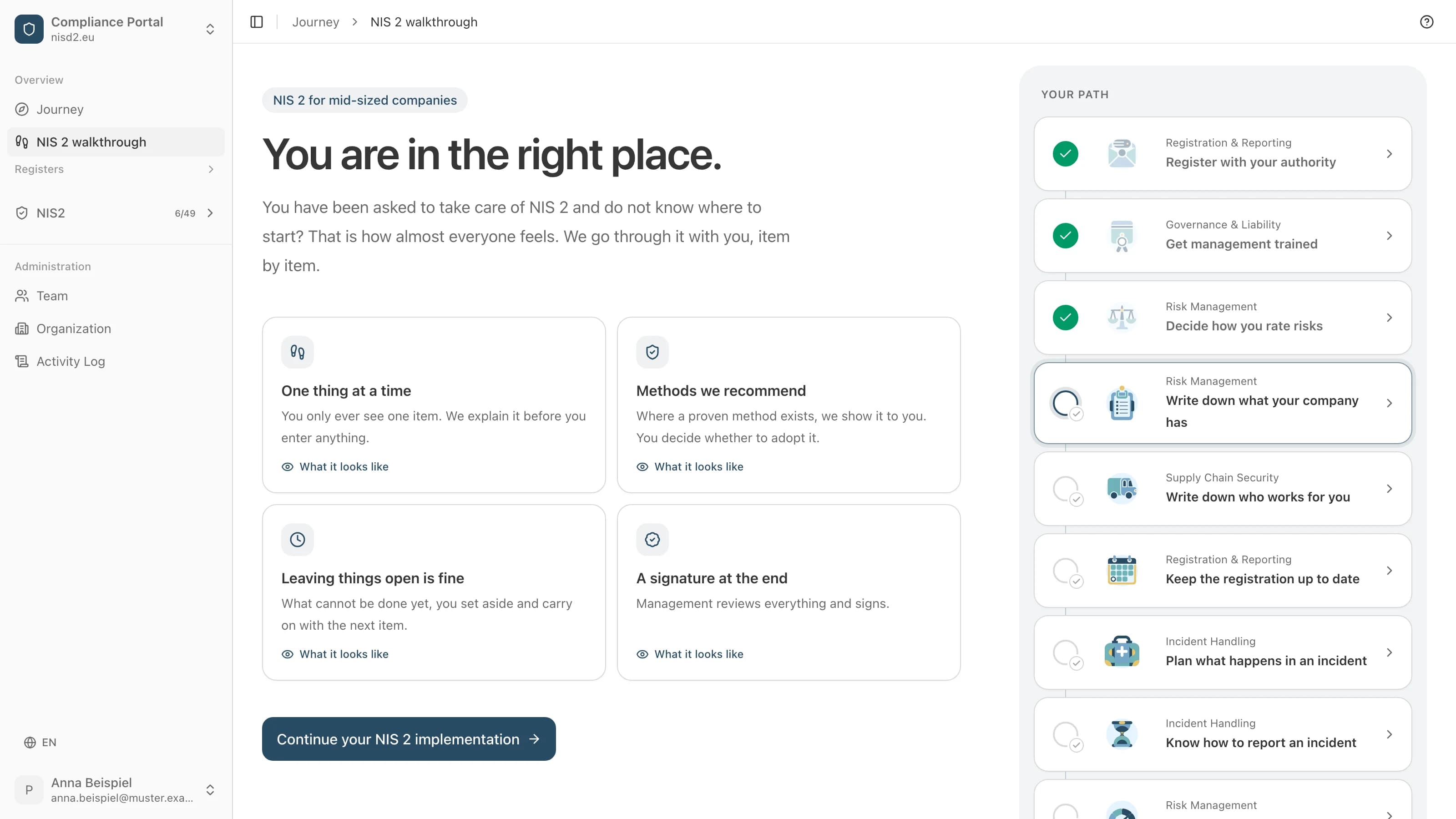
The walkthrough turns this into steps you fill in, with the law explained beside each one. Open a step to see its screen, filled in for a made-up company.

Risk Management
Write down what your company has
A list of the processes, software and devices you work with.

Supply Chain Security
Write down who works for you
A list of your suppliers and service providers.
What the walkthrough costs
€4,800 net a year, plus VAT
30 days money backBy invoice, due in 30 days. Cancel within the first 30 days: invoice cancelled or money back.
Guided NIS 2 implementation, step by step
A history of changes and sign-offs to show your regulator
Deadlines and reminders for each requirement
Security questionnaire for your suppliers
Export to PDF or CSV at any time
Been asked to handle NIS2?
In the end you have everything in one document: what is done, what is still open, and your management's approval with name and date. The app writes the texts.