MCP server errors: what do they mean in the NIS2 walkthrough?
When the server refuses something, it says why and usually where to go next. Most refusals point to a step a person takes: allowing assistants, signing in again or changing something in the app. What the app shows is in your language; what the server answers the assistant is mostly in English.




Why can the assistant read or fill in nothing?
An AI assistant connects to your company in the app through MCP (Model Context Protocol), an open standard: by signing in through the browser, or with a key from Settings. You reach Settings from the profile menu at the bottom left. Two things have to be in place.
The NIS 2 walkthrough has to be unlocked for your account. Otherwise Settings shows “An assistant works in the NIS 2 walkthrough, which is not unlocked for your account yet. Until it is, an assistant can read and fill in nothing.” with the button “Go to the walkthrough”. The assistant gets the same answer in the language it reads the walkthrough in, with a link to the next step.
Your company has to allow assistants. An admin does that with the switch “Allow AI assistants for this company”. Until then everyone else reads “Your company has not allowed AI assistants. An admin turns them on above.”
The page for connecting then says: “This company's admin has not allowed AI assistants, so none can be connected. Ask your admin, or decline.”
Which messages come up when connecting?
“An assistant stays connected even after you sign out, so connecting one needs a sign-in from the last 15 minutes.” This appears when you create a key and when you allow an assistant in the browser. Click “Sign in again”; afterwards you come back to the same page.
“This request has expired or is not valid. Start the connection again in the assistant.” A request on the connect page is valid for ten minutes. Start the sign-in in the assistant once more.
“You opened another company in a different tab. Reload this page to connect in the company you have open.” A key and a sign-in each work in exactly one company. Reload and check which company the page names.
Two messages arrive as a plain text page in the browser: “This assistant is not registered here. Connect it again from the assistant.” and “The address this sign-in returns to is not one the assistant registered.” In both cases, connect it again, starting from the assistant.
Why does the server refuse a change to an item?
An assistant changes items that are still open or set aside. For all others the server answers with the link to the item, and you make the change there in the app.
The messages read “Management has signed 2.2 …” (signed off), “The person has finished 2.2 and it waits for management's signature …” (finished, waiting for sign-off) or “The company decided not to do 2.2 …” (decided not to do).
“Changing the asset register would take management's signature back from 4.4 …”: a signed-off item relies on this list, and the message names the items. Change it in the app; the item then goes to management again.
For an approved document the message reads “Management approved the policy of 2.4 …”. You change that in the app as well.
Which refusals concern empty answers, roles and areas?
“An answer cannot be empty …”: an empty value would erase what is there. The assistant leaves the field out; you can clear it in the app.
“Your role reviews the walkthrough; it does not fill it in.”: with the role Reviewer or Legal reviewer, an assistant only reads.
“… is in an area that is not assigned to you.”: the item is in an area not assigned to that person.
“Rows on 7.3 are added in the app, where management approves the item …”: the management review, the open points and the sign-off in 7.3 are done by a person in the app.
What to do about “Too many calls” or a connection that is not valid?
“Too many calls in the last hour. Try again later.” Each person may make 300 calls an hour, all of their assistants together, counted in hourly windows. Wait until the hour is up.
“Connect this assistant to your nisd2 account: sign in, or make a key in Settings.” This is the server's answer when a connection is not valid.
A key ends after 90 days, a browser sign-in 90 days after you allowed it. The same answer comes when the connection was ended in Settings, an admin turned assistants off, or the person no longer belongs to the company. Connect again, or create a new key.
Why was my assistant disconnected?
After a browser sign-in, the assistant gets access for one hour and a refresh token, with which it renews that access itself. When it renews, the server checks whether the connection still stands.
If you ended this assistant in Settings with “Disconnect”, the answer is “This assistant was disconnected in Settings. Connect it again.” After “Disconnect all assistants”, a change of your password, or an admin turning assistants off, it is “The assistants of this account were disconnected.”
Each renewal swaps the refresh token for a new one. If an old one is used again later than a minute after its first use, it counts as copied, and the server disconnects every assistant of that person.
The answer is then “This refresh token was used before, so every assistant of this account was disconnected. Connect again.” Connect each assistant again afterwards.
How the walkthrough does it
Most refusals point to a step that a person takes in the walkthrough.
Settings: an admin turns on “Allow AI assistants for this company”. Then each person connects their own assistant, by signing in through the browser or with “Create key”.
2.2 and every other open item: the assistant fills in, you check the screens that carry its mark and finish the item in the app. After that the server takes nothing more from it on that item.
7.3: the management review, the open points and the sign-off are done by a person in the app, the sign-off itself by management with its own account.
After the sign-off: whatever a signed-off item relies on, you change in the app. The item then goes to management again.
Common questions
The assistant only reports “unauthorized”. What does that mean?
It sent no valid key and no valid sign-in. The server adds “Connect this assistant to your nisd2 account: sign in, or make a key in Settings.” Check in Settings under “Connected” whether the assistant is still listed, and connect it again if not.
The assistant finds no data, or only part of it. Why?
It sees the list of all items with their headline and state, but an item's content only in the areas assigned to the person who connected it. With read_records, someone who may export has it read all records once an admin allows it; anyone else is refused. If an item is missing for it, an admin checks that person's areas. If the assistant gets a message instead of data, you will find it on this page.
Why does a colleague see no button to connect?
Either your company has not allowed assistants, and an admin turns the switch on. Or the walkthrough is not unlocked for their account, and Settings shows them the way to the walkthrough instead of a key.
Does a refusal change anything in our data?
No, a refused change is not saved. If a line does not match what the item expects, the server refuses the whole call before saving anything. Otherwise each line is saved or refused on its own, and the answer tells the assistant which.
Read next
- Enabling the MCP server and allowing AI assistantsAn admin turns assistants on in Settings; until then they are off. Where the switch is, who may flip it and which accounts can connect after that.
- Claude Code: adding the NIS2 walkthrough as an MCP serverOne command, one browser sign-in, and Claude Code reads and fills your walkthrough. With a key for scripts and a first task for 5.1.
- Revoking MCP access: one assistant or allOne at a time in Settings or all at once, and why signing out ends no assistant. Plus what else ends a connection.
Sources
- open-isms, lib/mcp/tools.ts (refusals when reading and filling in), github.com/NISD2/open-isms
- open-isms, lib/mcp/endpoint.ts, lib/mcp/oauth.ts and lib/mcp/key.ts (sign-in, keys and their lifetimes), github.com/NISD2/open-isms
- open-isms, lib/mcp/server.ts (300 calls per person per hour), github.com/NISD2/open-isms
- open-isms, messages/settings/en.json (the texts in Settings and on the connect page), github.com/NISD2/open-isms
- Model Context Protocol, specification 2026-07-28, Authorization section, modelcontextprotocol.io
In practice
Where this comes up in the walkthrough
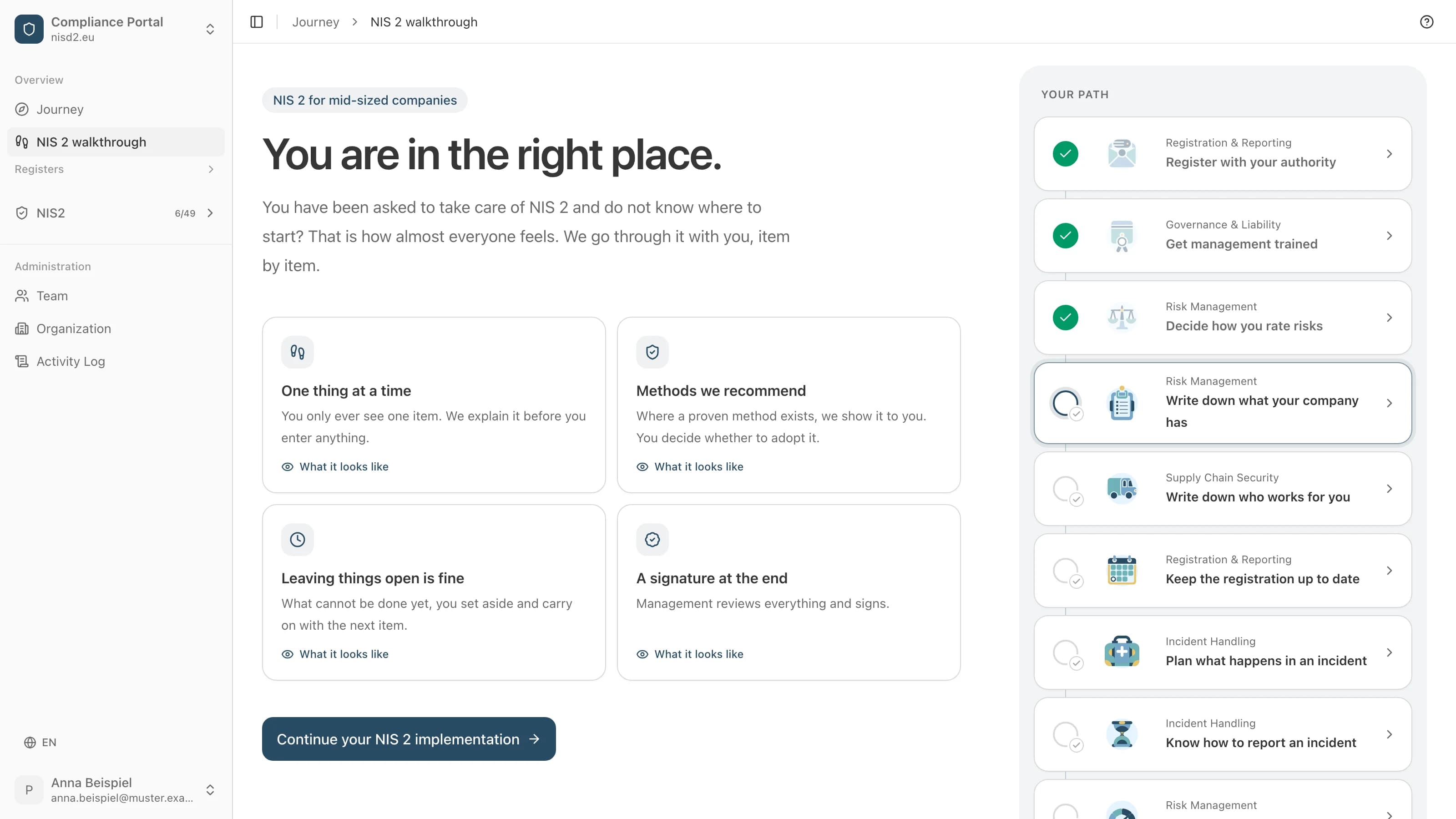
The walkthrough turns this into steps you fill in, with the law explained beside each one. Open a step to see its screen, filled in for a made-up company.

Risk Management
Write down what your company has
A list of the processes, software and devices you work with.

Effectiveness Assessment
Record the management review
Management checks whether the measures work and approves your documents.
What the walkthrough costs
€4,800 net a year, plus VAT
30 days money backBy invoice, due in 30 days. Cancel within the first 30 days, before the first export or sign-off: invoice cancelled or money back.
Guided NIS 2 implementation, step by step
A history of changes and sign-offs to show your regulator
Deadlines and reminders for each requirement
Security questionnaire for your suppliers
Export to PDF or CSV at any time
Been asked to handle NIS2?
In the end you have everything in one document: what is done, what is still open, and your management's approval with name and date. The app writes the texts.