How can you trace AI entries in the NIS2 walkthrough?
Through the mark on the screen and the activity log. Every screen an assistant wrote carries its name and the day. The log shows every change it made under the person's name, with “via” and the assistant's name. That lets management see before approving at 7.3 what came from an assistant.



How do you see what an assistant wrote?
If an assistant wrote a screen in the walkthrough, it says, for example, “Filled in by the assistant claude-code/2.1.287 on 16 October 2026”.
The name is the one the assistant gives itself when it signs in through the browser. With a pasted key it is the identifier its program sends.
The mark records that day's change and stays when a person changes the screen afterwards. If an assistant writes there again later, the mark shows that one. Whether a person changed anything after the assistant, you see in the activity log.
What does the activity log show?
The activity log shows, day by day, who changed what and when. A change through an assistant stands under the name of the person who connected it, with “via” and the assistant's name below it, then the time.
When a call saved something, there is also the entry “Walkthrough item filled in by an assistant” with the item's code. What a change caused appears with the assistant too, such as an item picked up again from the waiting list.
What people do in Settings is in the log as well, for example “Key for assistants created”, “Assistant allowed” or “All assistants disconnected”.
Admins and people with the Reviewer or Legal reviewer access role can see the log. You find it in the left sidebar under Administration.
What does each row in the log store?
Behind every entry is a row in the database. If the change came through an assistant, the row's field for the program (the user agent) starts with “mcp:”, followed by the name the assistant gave when it signed in. With a pasted key it is its program's identifier, cut to the first 100 printable characters, or “key” if it sends none.
A browser cannot imitate this marking. If a browser itself sends an identifier that starts that way, it is stored behind a marker. Only what came through a key or an assistant's sign-in counts as an assistant's change.
Not every row has readable text yet: some still name the change by its technical name, and a few rows that only accompany a change appear without “via”. What you can rely on is the person's name, “via” with the assistant on its changes, and the time.
Reading changes nothing. The activity log notes it once an hour, marked MCP; the server log gets a line per call with the tool and the person's ID. Neither holds the content; self-hosted, both sit with your IT.
What does management check before approving at 7.3?
Management approves the measures and oversees their implementation (Art. 20(1) NIS 2). Before approving at 7.3, it helps management to know which entries an assistant made and who finished the item afterwards.
Open the items waiting for approval and read the screens with a mark first. Ask about facts only someone in the company can know, such as the date of the last restore that worked in 4.4.
An admin or reviewer can show you in the activity log whether anyone changed something afterwards and who finished the item.
This is how the walkthrough shows that every change made through an assistant is tied to a person and that people finished and approved the items. Whether such records hold up in an audit is covered in our article on NIS 2 records filled in by AI.
Art. 20(1) NIS 2
How the walkthrough does it
At 7.3 everything entered earlier comes together, and management decides there.
Before 7.3, a person reads the screens with an assistant's mark in each item and corrects them in the app before finishing the item.
The activity log shows which changes came via an assistant and whether anyone changed something afterwards.
7.3 Record the management review: management sees its risks and the open points, each with a record of who takes care of it and by when, and approves the documents.
Each approved document then carries name and date, and the log shows the approval under the name of the person from management.
Common questions
Does the mark disappear when we correct the entry?
No. It records that an assistant wrote here on that day, and it stays. Your correction appears in the activity log under your name, without “via”.
Can we see what the assistant read?
Not the content. The activity log shows each change, and that an assistant read (marked MCP, once an hour). The server log has a line per call, never what was read.
Who is behind a change that came through an AI assistant?
The person whose name is in the activity log. An assistant always works as the person who connected it. In Settings each person sees their connections with the day connected and the day last used.
Can two assistants write on the same screen?
Yes. The mark then shows the assistant that wrote there last. The earlier changes remain in the activity log.
Can an assistant give a false name?
The assistant gives its name itself, and the sign-in page says so. So allow only a connection you started yourself just now. Which person connected it is always on record.
Read next
- Who is liable for AI entries under NIS2?Art. 20 NIS 2 puts approval and oversight on management, whoever did the typing. Whose entry it is in the walkthrough, and why no assistant approves.
- Is an MCP server safe?That depends on the server. What the walkthrough's MCP server checks on every call, what an assistant cannot do there and what stays with you.
Sources
- Directive (EU) 2022/2555 (NIS 2), Art. 20(1), EUR-Lex
- open-isms, lib/mcp/fills.ts (the mark on the screen), github.com/NISD2/open-isms
- open-isms, lib/mcp/agent.ts (the mcp: marking in the log), github.com/NISD2/open-isms
- open-isms, components/audit/AuditLogTable.tsx (the activity log), github.com/NISD2/open-isms
- open-isms, server/trpc/routers/audit.ts and lib/auth/roles.ts (who sees the log), github.com/NISD2/open-isms
- open-isms, lib/mcp/server.ts (the line in the server log), github.com/NISD2/open-isms
In practice
Where this comes up in the walkthrough
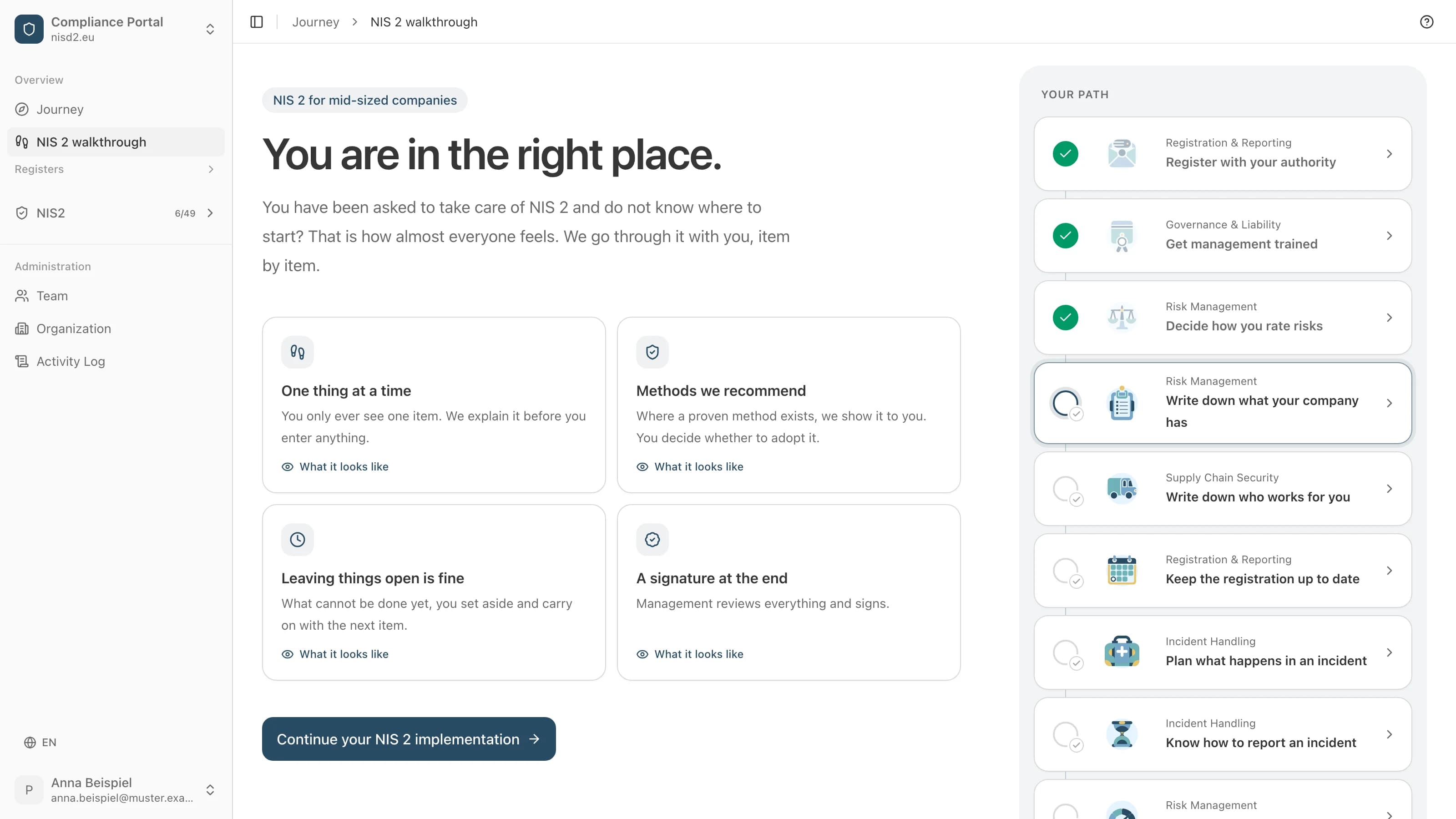
The walkthrough turns this into steps you fill in, with the law explained beside each one. Open a step to see its screen, filled in for a made-up company.

Effectiveness Assessment
Record the management review
Management checks whether the measures work and approves your documents.
What the walkthrough costs
€4,800 net a year, plus VAT
30 days money backBy invoice, due in 30 days. Cancel within the first 30 days, before the first export or sign-off: invoice cancelled or money back.
Guided NIS 2 implementation, step by step
A history of changes and sign-offs to show your regulator
Deadlines and reminders for each requirement
Security questionnaire for your suppliers
Export to PDF or CSV at any time
Been asked to handle NIS2?
In the end you have everything in one document: what is done, what is still open, and your management's approval with name and date. The app writes the texts.